iTerm2
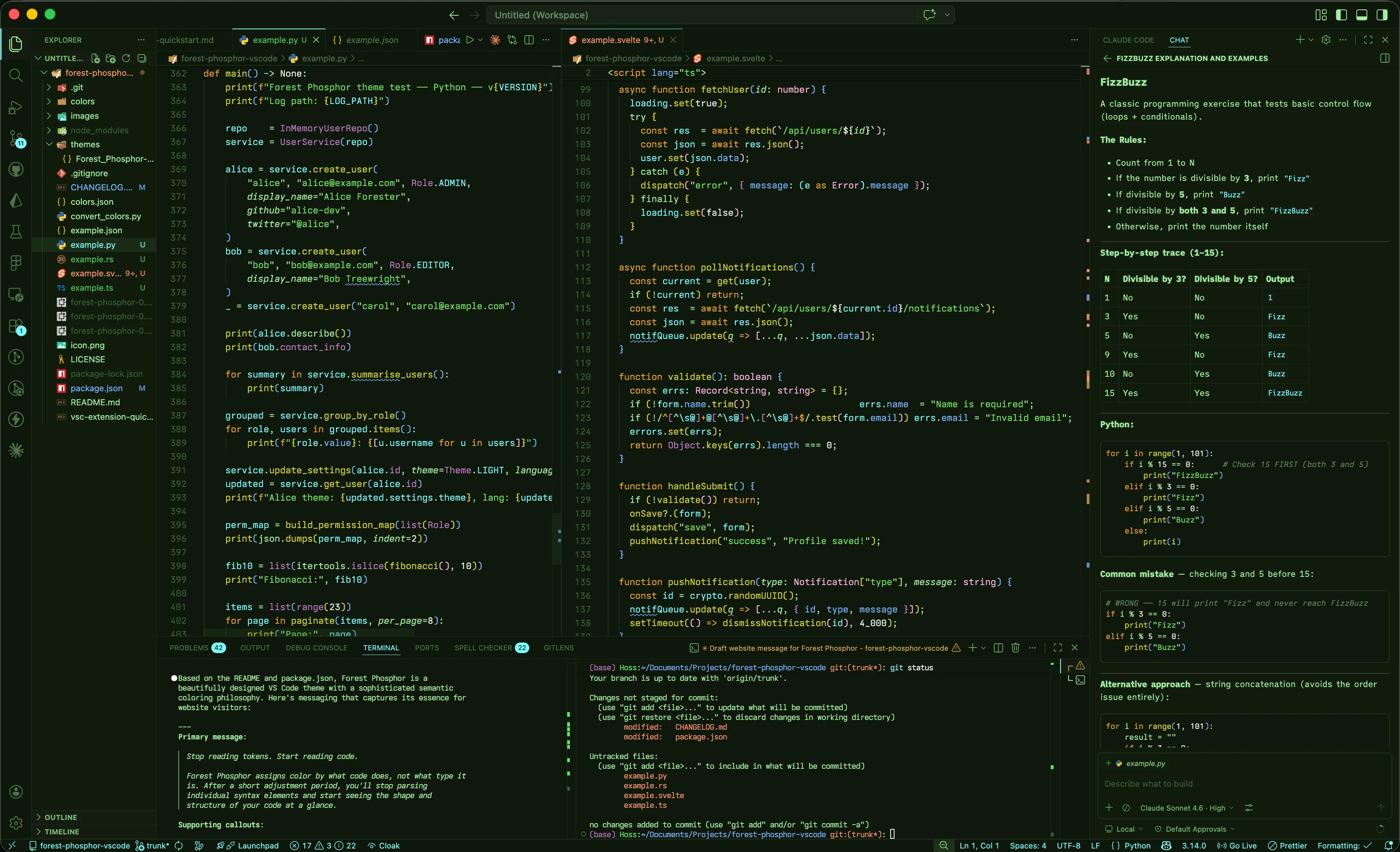
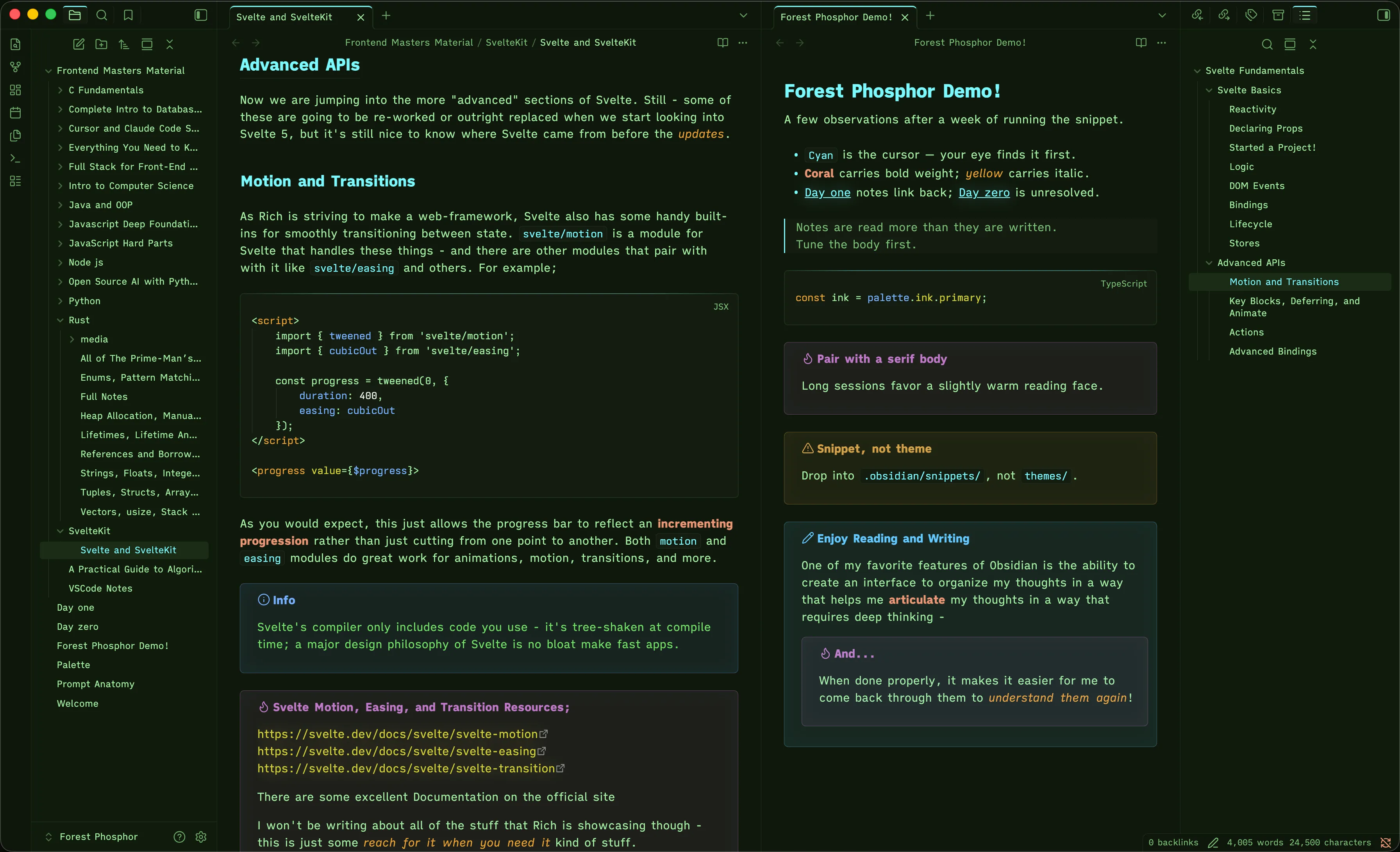
Phosphor monitors were terminals. The theme starts here - a Display-P3 dark profile, sixteen tuned ANSI slots, and an Oh My Zsh prompt that paints itself from the same palette.
The Terminal
Ioskeley-Mono Font with syntax highlighting on a customizable prompt that shows everything you need at a glance. The terminal below is fully interactive and emulates an environment with the Forest Phosphor profile.
    ✦                   ✦
             ✦
        ▟█▙                      ✦
       ▟███▙
      ▟█████▙     ✦   ▟█▙.
✦   ▟███████▙        ▟███▙
    ▟█████████▙      ▟█████▙.   ✦
         ║              ║

  ✦  Forest Phosphor  ·  click to interact  ✦
type `help` and press Enter for a list of commands help, ls -la, cat README.md, git status.The prompt
An Oh My Zsh prompt assembled in ~/.zshrc — five chunks, each pulled from a single ANSI slot. The whole thing is one PROMPT= line plus a precmd() that refreshes the conda env on every render.

-
(base) CONDA_PROMPT_MODIFIERactive conda env — magenta (concrete shape)
-
Machine %F{green}%m%fhostname — ANSI green slot
-
~ %F{blue}%~%fcwd — ANSI blue slot (property)
-
(trunk*) %F{red}$(git_prompt_info)%fgit branch + dirty marker — ANSI red slot (coral)
-
: literalseparators inherit foreground green
# Load git plugin (required for git_prompt_info)
plugins=(git)

# Git prompt customization (must come BEFORE source)
ZSH_THEME_GIT_PROMPT_PREFIX=" ("
ZSH_THEME_GIT_PROMPT_SUFFIX=")"
ZSH_THEME_GIT_PROMPT_CLEAN=""
ZSH_THEME_GIT_PROMPT_DIRTY="*"

# Prompt format

autoload -Uz colors && colors
precmd() {
  CONDA_PROMPT_MODIFIER="%F{#C07AC8}($CONDA_DEFAULT_ENV)%f "
}
PROMPT='${CONDA_PROMPT_MODIFIER}%F{green}%m%f:%F{blue}%~%f %F{red}$(git_prompt_info)%f: '

# Load Oh My Zsh after everything is configured
source $ZSH/oh-my-zsh.shProfile settings
The profile ships with separate Light and Dark color sets and defaults to Dark. The non-color settings below matter most - they're what make box drawing, ligature glyphs, and italic highlighting all line up.
Setting | Value | Note |
|---|---|---|
Font | Ioskeley-Mono | project-shipped face; falls back to JetBrains Mono |
Non-ASCII font | Monaco 15 | covers symbols Ioskeley does not ship |
Italic / Bold | on | required for the prompt + zsh-syntax-highlighting styles |
Brighten Bold | on (Dark) | bold pushes to bright white instead of saturating ANSI |
Powerline glyphs | on | enables / branch separators if you swap in a powerline theme |
Cursor | vertical bar, blinking | Cursor Type 1 + Blinking Cursor true |
Spacing | V 1.01 · H 0.99 | small breathing room - keeps box-drawing flush |
Thin strokes | 4 (always) | crisp glyph rendering on retina + non-retina |
Terminal type | xterm-256color | required for the bright slots to resolve |
Scrollback | unlimited | tmux history-limit is the actual ceiling in practice |
Color mapping
Sixteen slots, two tiers. The standard set lives in 0–7; their brighter variants in 8–15. Where you see Display P3 in the profile JSON, that's your Mac pushing the accent colors into wider and more saturated tones than a standard display can show - the terminal will run slightly hotter than what the swatches on this page can show
Beyond the 16 slots
Background, foreground, cursor, selection, and link colors live outside the ANSI table - these are the keys you set under Profiles → Colors → Basic Colors.
Oh My Zsh & line highlighting
The terminal palette only paints what the shell tells it to. Pair it with Oh My Zsh for the git plugin (which feeds git_prompt_info) and zsh-syntax-highlighting for the per-token coloring on the command line itself. The overrides below are pulled straight
from the reference ~/.zshrc.
git#D1CF32resolved binaries — yellow, the callable role
cd#E8A030shell builtins — amber, structural (shell-internal control)
ll#D1CF32aliased commands — yellow, callable like any other command
precmd#D1CF32shell functions — yellow, callable
"phosphor"#73E165string literals — string green
--color#77B0FFflags — blue, attributes on a command (not callable)
~/Projects#7AF8FFreal paths — cyan, the data / variable role
asdf#EA9575unresolved — coral attention signal
# zsh-syntax-highlighting - Forest Phosphor colors
source /usr/local/share/zsh-syntax-highlighting/zsh-syntax-highlighting.zsh

# Commands, builtins, aliases, functions — all callable, all yellow.
# Builtins keep amber to mark them as structural (shell-internal control).
ZSH_HIGHLIGHT_STYLES[command]='fg=#D1CF32,nounderline'
ZSH_HIGHLIGHT_STYLES[builtin]='fg=#E8A030,nounderline'
ZSH_HIGHLIGHT_STYLES[alias]='fg=#D1CF32,nounderline'
ZSH_HIGHLIGHT_STYLES[function]='fg=#D1CF32,nounderline'

# Strings - string green
ZSH_HIGHLIGHT_STYLES[single-quoted-argument]='fg=#73e165'
ZSH_HIGHLIGHT_STYLES[double-quoted-argument]='fg=#73e165'

# Flags / options — blue (attributes on a command, not callable)
ZSH_HIGHLIGHT_STYLES[single-hyphen-option]='fg=#77B0FF'
ZSH_HIGHLIGHT_STYLES[double-hyphen-option]='fg=#77B0FF'

# Paths — cyan (data / variable role)
ZSH_HIGHLIGHT_STYLES[path]='fg=#7AF8FF'

# Unknown / error commands — coral attention signal
ZSH_HIGHLIGHT_STYLES[unknown-token]='fg=#EA9575,nounderline'Install
Two halves. The profile JSON paints iTerm2's chrome and the 16 ANSI slots. The shell config paints the prompt and the active line. You can run either half on its own; together they're what's pictured at the top of the page.
A · The iTerm2 profile
# Download the profile
curl -O https://raw.githubusercontent.com/Steven-Theuerl/forest-phosphor-iterm2/refs/heads/trunk/iTermForestPhosphor.jsonB · Oh My Zsh + syntax highlighting
# 1. Install Oh My Zsh
sh -c "$(curl -fsSL https://raw.githubusercontent.com/ohmyzsh/ohmyzsh/master/tools/install.sh)"

# 2. Install zsh-syntax-highlighting (Homebrew)
brew install zsh-syntax-highlighting

# 3. Drop the prompt + highlight blocks from this page into ~/.zshrc
#    (above the conda init block if you use Miniconda)

# 4. Reload
exec zsh# Download the reference .zshrc to your current directory
curl -O https://raw.githubusercontent.com/Steven-Theuerl/forest-phosphor-iterm2/refs/heads/trunk/zshrcReference.sh